Solution Explorer
Advanced Search
Powerful search capabilities to find code, files, and symbols across your entire solution.
Overview
Section titled “Overview”The Advanced Search feature lets you quickly find and navigate to:
- Classes, interfaces, structs, records, and enums
- Methods, properties, fields, and events
- Constants and enum values
- Namespaces and other symbols
This feature is especially valuable in large codebases where traditional file search is too slow or imprecise.
Opening Advanced Search
Section titled “Opening Advanced Search”There are multiple ways to access Advanced Search:
- Press
Alt+P(default keyboard shortcut) - Use the Command Palette (
Ctrl+Shift+P) and type “Advanced Search: Types & Symbols” - Click the search icon in the Solution Explorer title bar
Search Syntax
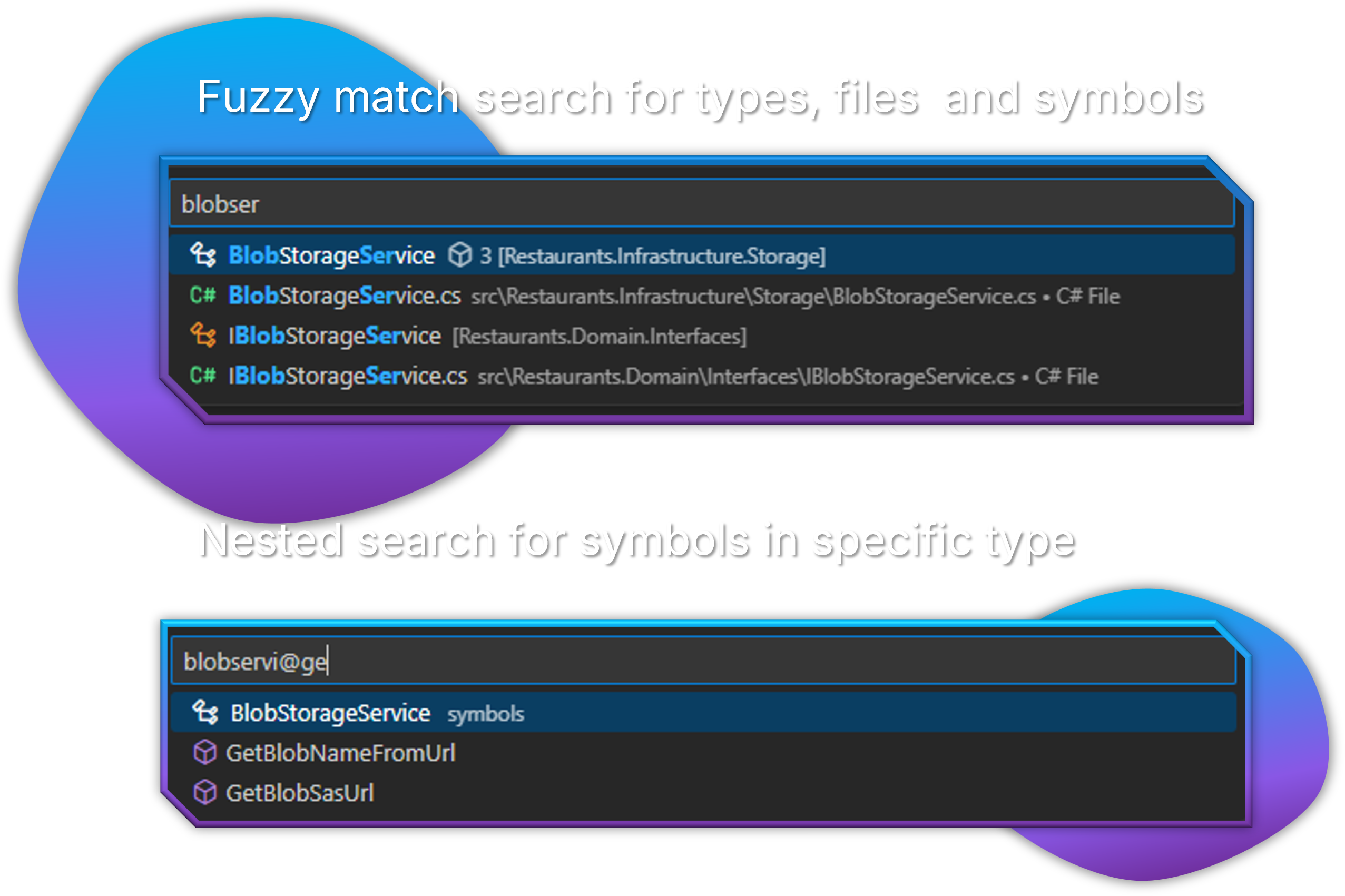
Section titled “Search Syntax”Advanced Search offers several search modes:
Type Search
Section titled “Type Search”To search for types (classes, interfaces, etc.), simply type the name:
CustomerThis will find all types with “Customer” in their name.
Member Search
Section titled “Member Search”To search for members within any type, use the @ syntax:
@AddItemThis will find all members named “AddItem” across all types.
Scoped Member Search
Section titled “Scoped Member Search”To find members within a specific type, combine both approaches:
ShoppingCart@AddItemThis will find methods named “AddItem” within types named “ShoppingCart”.
Constants and Enum Values
Section titled “Constants and Enum Values”Advanced Search can also find:
Constants
Section titled “Constants”@MaxRetryCountThis will find all constant fields named “MaxRetryCount” across your solution.
Enum Values
Section titled “Enum Values”OrderStatus@PendingThis will find the “Pending” value within the “OrderStatus” enum.
You can also search for enum values across all enums:
@PendingSearch Results
Section titled “Search Results”The search results display:
- Matching symbol name
- Symbol type (class, method, property, const, enum value, etc.)
- Containing type (for members)
- Namespace
- File path
Navigating to Results
Section titled “Navigating to Results”To navigate to a search result:
- Click on the result
- The file will open with the cursor positioned at the symbol definition
- For large files, the relevant section will be automatically expanded and scrolled into view
Search Index
Section titled “Search Index”The search index is automatically built when:
- A solution is loaded
- Project files are modified
- The “Rebuild Search Index” command is executed
To manually rebuild the search index:
- Open the Command Palette (
Ctrl+Shift+P) - Type “C# Solution Explorer: Rebuild Search Index”
- Press Enter to execute the command
Tips for Effective Searching
Section titled “Tips for Effective Searching”Quick Navigation
Section titled “Quick Navigation”- Use partial names: typing
Custwill findCustomer,CustomerId, etc. - Case-insensitive:
customermatchesCustomer - Wildcards work:
*Servicefinds all types ending with “Service”
Finding Specific Members
Section titled “Finding Specific Members”@Get- Find all members starting with “Get” (properties, methods)@On- Find all event handlers starting with “On”@_- Find all private fields (common naming convention)
Working with Enums
Section titled “Working with Enums”Search for specific enum values to understand their usage:
HttpStatusCode@NotFoundOr find all occurrences of a constant value:
@DefaultTimeoutPerformance Tips
Section titled “Performance Tips”- The search index updates automatically in the background
- First search after opening a solution might take slightly longer
- Subsequent searches are extremely fast using the cached index
- Index is persisted between VS Code sessions
Related Features
Section titled “Related Features”- Solution Explorer - Main solution navigation
- Opening Solutions - Solution management
- Code Navigation - Symbol navigation features